

When Computer needs to reach a third-party API that does not have a built-in connector, you can securely provide your own API credentials. Your keys are encrypted and stored so they are never exposed in the agent’s trajectory (the prompts and responses exchanged with third-party models) or in the task sandbox. Providing credentials within a task works on all Perplexity clients; the credentials vault surfaces for saving and managing them are available on web.
Overview
Some tools you want Computer to use will not have a built-in connector yet. Custom credentials let you bring your own API credential so Computer can authenticate to that service on your behalf — for example, to send a transactional email, pull data from an analytics API, or look up sports scores from a data provider. Computer supports the authentication methods these APIs use: tokens, custom headers, and query parameters. If you provide a username and password, Computer combines them into an Authorization bearer credential so it can authenticate to the API securely.
When a task needs credentials, Computer prompts you with a secure form. Your credential is encrypted and injected into outgoing API requests through a secure proxy, so the raw value is never exposed to the agent’s activity or the task sandbox. You choose how long a credential should stick around: just this task, saved to your personal vault for reuse, or shared with a project so your teammates can use it too. A credential you add in a task stays available for the duration of the Computer session, and you can revoke it at any time. If you save it to your personal vault, Computer attaches it with your approval — or automatically for queries that require it, if you have set up automatic approval.
Why use custom credentials?
Connect services without a built-in connector. Bring your own API key for a third-party tool so Computer can work with it right away.
Keep secrets out of the agent’s view. Credentials are encrypted and injected through a secure proxy, so the raw value never appears in the agent’s activity or sandbox.
Reuse keys across your tasks. Save a credential to your personal vault once and let Computer reuse it in future tasks.
Share access with a project. Add a credential to a project so everyone on the team can use it, without sharing the raw key.
Stay in control. For each saved credential, you can choose whether to let Computer use it without your approval, or to have Computer ask for your approval before using it in a task.
Note: Before you add a custom credential, check whether the service already has a built-in connector. Connectors are the preferred way to link a third-party service, and Computer will use one when it is available. Use custom credentials for services that do not have a connector yet.
The three credential scopes
Credentials come in three scopes, based on how long they last and who can use them:
Session (single task): Used only within the current task, and not saved for reuse.
Credential vault (personal): Saved to your personal Credential vault and reusable across your own tasks.
Project (shared): Saved to a project so everyone on the team can use it.
The sections below explain how each one works.
Session credentials (single task)
Session credentials are the simplest option: you provide a key for one task, and it is not saved.
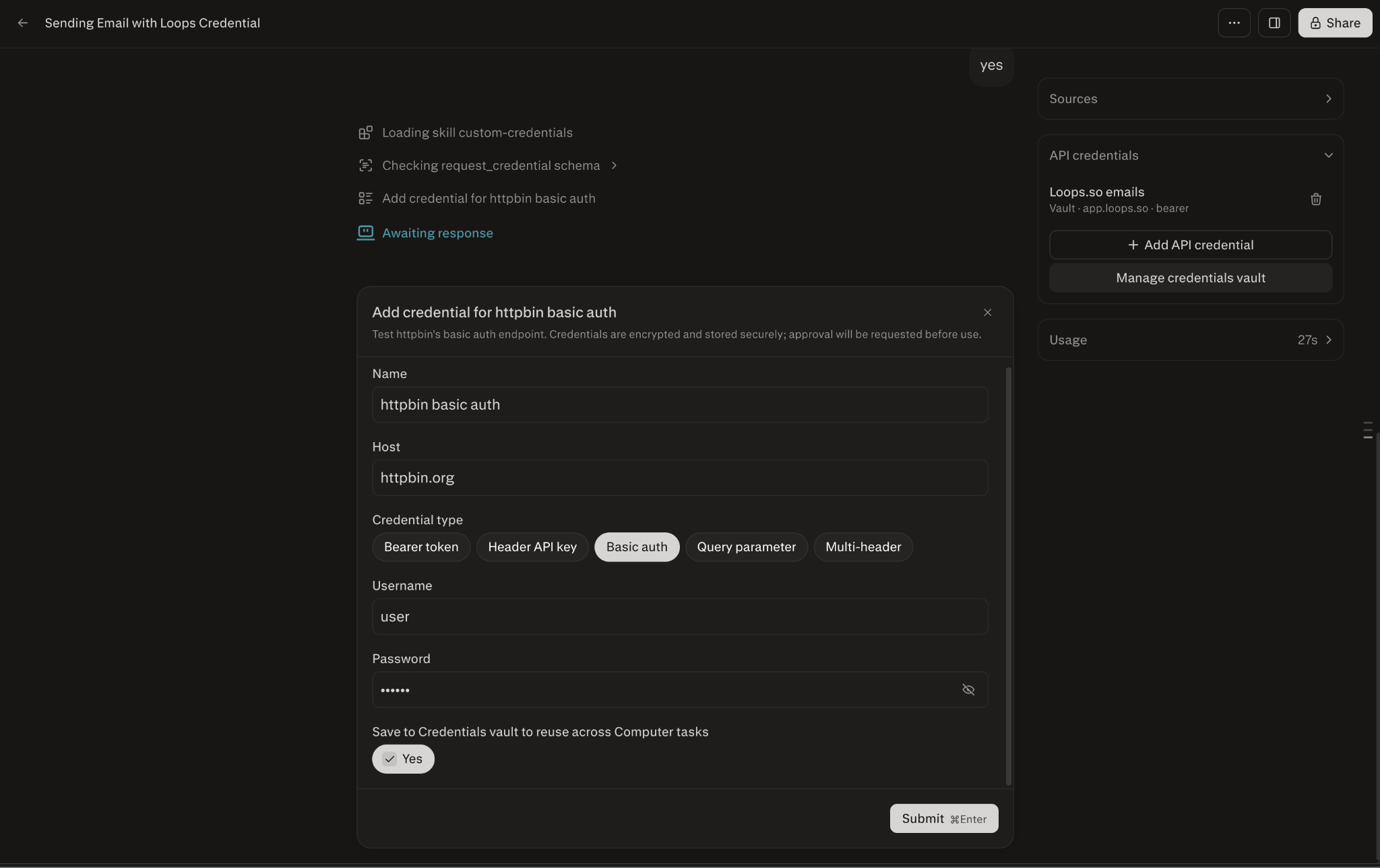
You are prompted in the task. When a task needs a credential, Computer surfaces a secure form for you to enter it. It pre-fills details like the host, name, and credential type where it can.
It is encrypted and proxied. Your credential is encrypted and injected into outgoing API requests through a secure proxy, so the raw value is never visible to the agent’s activity or the sandbox.
It lasts for the whole task. Once added, the credential is available for the rest of that task, including follow-up requests.
It is not saved. Session credentials are not stored for reuse — start a new task and you will be prompted again. You will have the option to save the credential to your vault if you want to reuse it in the future.
User vault credentials (personal, reusable)
Save a credential to your personal vault to reuse it across your own tasks without re-entering it each time.
Save from the task form. When Computer prompts you for a credential, choose the option to save it to your Credential vault to reuse it across Computer tasks.
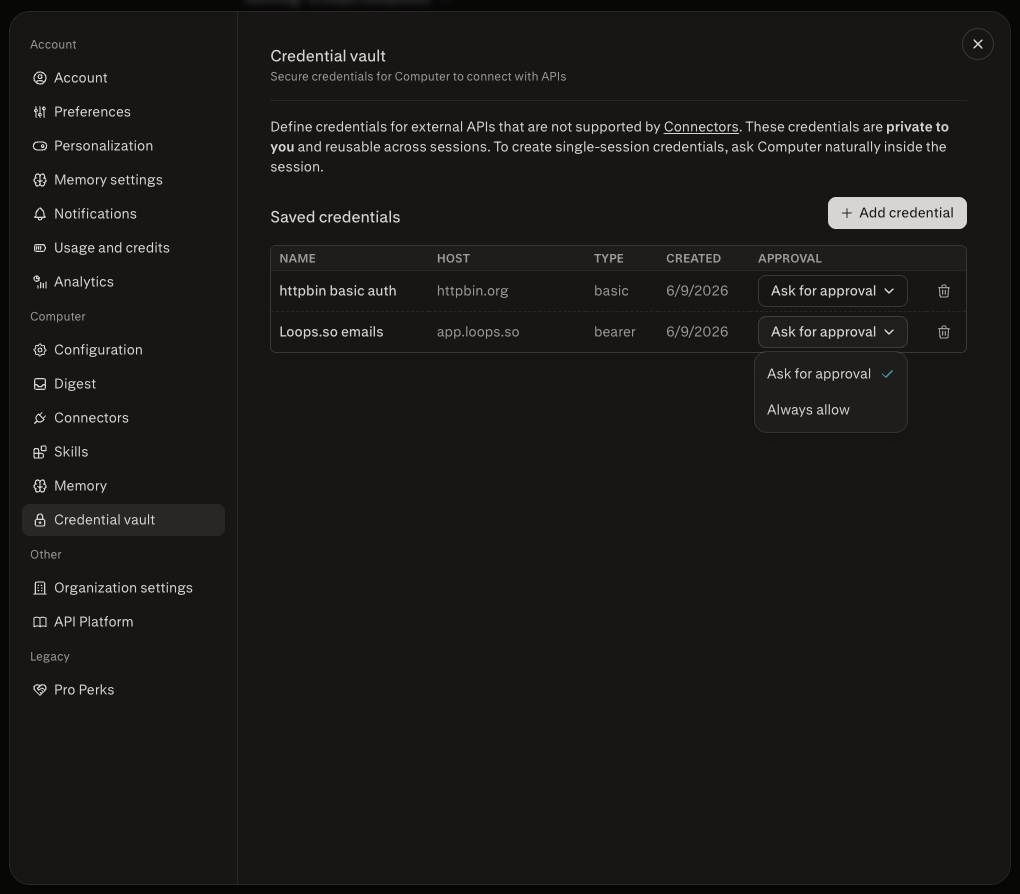
Or add it directly. Go to Settings > Credential vault to add and manage credentials outside of a task.
Approve before each reuse. By default, Computer recognizes your saved credential and asks for your explicit approval before using it. You can select Always allow to bypass explicit approval every time the credential is needed.
It stays private to you. User vault credentials belong to your account and are not shared with anyone else.
Project credentials (shared with a team)
Add a credential to a project so everyone working in that project can use it — useful for a shared key your team relies on.
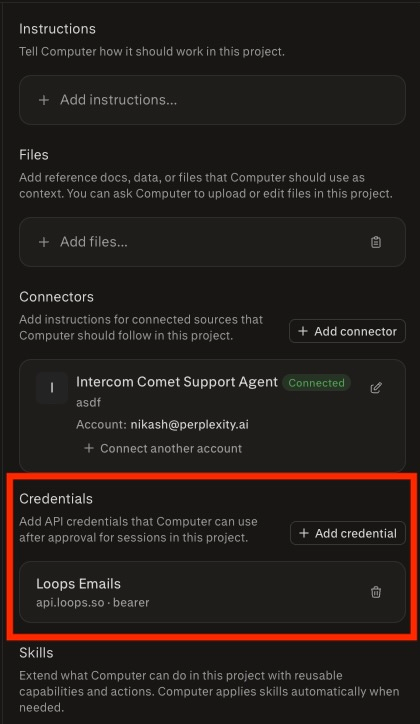
Add it in the project. Project credentials are defined in the project’s sidebar, under the Credentials section.
Everyone in the project can use it. All members of the project can use the credential in their tasks, without seeing the raw value.
Writers manage it. You must be at least a writer on the project to add or revoke a project credential, following the same access rules as project connectors.
Approve before each use. Within a task, Computer always asks for your approval before using a project credential. You can set up Always allow to bypass this step.
Managing your credentials
Find your vault in Settings > Credential vault. Your personal Credential vault lives in your account settings. You can also reach it from the Connectors page — click the Add a custom connection dropdown and then click Connect your own API.
Add, review, or remove keys. Open the Credential vault to add a new credential, review the ones you have saved, or remove one you no longer need.
Manage project credentials in the project. Add or revoke a project’s credentials from that project’s connectors settings. You must be at least a writer on the project.
Limits and privacy
Your raw key stays hidden. Credentials are encrypted and injected through a secure proxy, so the raw value is never exposed to the agent’s activity or the task sandbox.
API requests only. Custom credentials are supported for API requests that Computer can route through the secure proxy. Other secret types, such as SSH keys, are not supported today.
Approval is required for saved credentials. Computer asks for your explicit approval before using a saved user or project credential in a task, unless you explicitly choose Always allow to bypass explicit approval every time the credential is needed.
Session credentials are not stored. A session credential is used only within that Computer session, can be revoked at any time, and is not saved for reuse in later sessions, unless you explicitly choose to save the credential to your Credential vault.
Project credentials are shared with the project. Anyone with access to a project can use its credentials in their own tasks, so only add keys you intend to share with that team.
Frequently asked questions
What is the difference between a session, user, and project credential?
A session credential is used only in the current task and is not saved. A user vault credential is saved to your personal account and reusable across your own tasks, with your approval each time. A project credential is saved to a project so everyone on that team can use it, again with approval before each use.
Should I use a connector or a custom credential?
If the service has a built-in connector, use the connector — it is the preferred way to connect a third-party service. Use a custom credential when there is no connector available for the tool you need.
Can Computer see my API key?
No. Your credential is encrypted and injected into outgoing requests through a secure proxy, so the raw value is never visible to the agent’s activity or the task sandbox.
Why is Computer asking me to approve a credential?
For saved credentials, Computer asks for your explicit approval before using a user-vault or project credential in a task. This keeps you in control of when your saved keys are used. You can configure Computer to skip approval requests for specific credentials — to do so, select Always allow within the specific credential’s settings in your Credential vault.
How do I reuse a credential in a future task?
Save it to your Credential vault when Computer prompts you, or add it directly from the vault. In later tasks, Computer will recognize it and ask you to approve its use.
Where do I find my Credential vault?
Your personal Credential vault lives in your account settings. You can also open it from the Connectors page using the option to add a custom connection or connect your own API.
Can my teammates use my keys?
Only if you add them as project credentials. User credentials are private to your account. Project credentials can be used by everyone in the project, and you must be at least a writer on the project to add or revoke them.
Can I store other secrets, like an SSH key?
Not currently. Custom credentials support API requests that route through the secure proxy. Other secret formats, such as SSH keys, are not supported today.
Is the username and password the same as my login to that service’s website?
No. When you provide a username and password, Computer uses them to build an Authorization bearer credential for authenticating to the service’s API — it is not a general-purpose login for signing in to that service’s website. Custom credentials are only used to authenticate API requests, using tokens, custom headers, or query parameters. If you are unsure which value to enter, check the API’s documentation for how it expects requests to be authenticated.