

Once Computer builds a website or web app for you, you can publish it to a live, shareable URL — either on a customizable Perplexity-hosted pplx.app address, or to your own custom domain via Vercel. This is available to anyone who can create websites with Computer, on web.
Overview
Building a website with Computer starts in a preview, visible only to you. Publishing turns that preview into a live site others can open in a browser — no hosting setup, deployment steps, or DNS configuration required. You choose exactly who can see it, from a private link just for you to a page that’s public to everyone, and you can keep iterating and re-publishing to the same URL at any time. This article explains the two ways to publish, how to control access, and how to manage a published site over time.
Why publish your website?
Share a live link. Turn a preview into a real, working site others can open in any browser — no install or setup.
Control who can see it. Set a published pplx.app site to be visible to just you, your whole organization, specific people, or everyone.
Keep iterating. Ask Computer to make changes and re-publish to the same URL, so your link always points to the latest version.
Go custom when you need to. Publish to Vercel to use your own custom domain and hosting infrastructure.
Two ways to publish
When you view a website Computer has built, the publish view offers two paths:
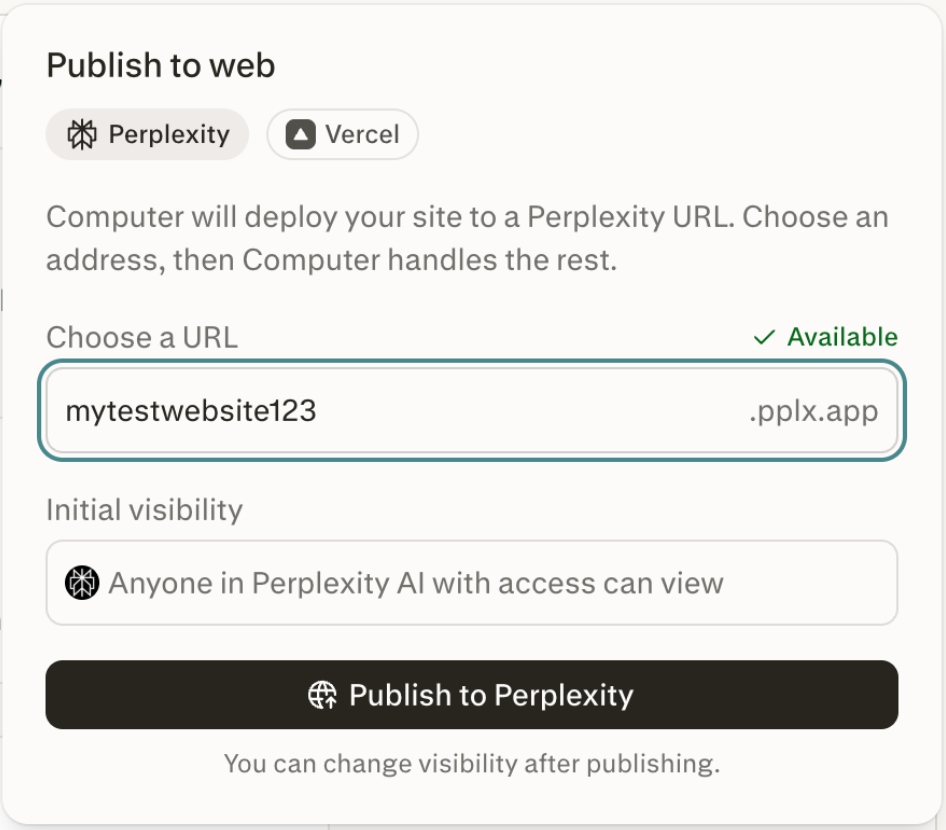
Publish (Perplexity): Publishes your site to a Perplexity-hosted pplx.app URL. These sites are hosted by Perplexity and support visibility controls, so a site can be published and still stay private to you or your organization.
Publish with Vercel: Deploys your site to Vercel through the Vercel connector. Choose this if you want a custom domain, customized infrastructure, or other Vercel-managed settings.
Publishing in Perplexity
To publish, open the website preview and select Publish in the publish view.
To set who can see it, choose a visibility level before or after publishing.
To update a published site, ask Computer to make changes — it re-publishes to the same pplx.app URL.
To take a site down, use the Unpublish option and confirm when prompted.
Visibility and access
Default visibility: Sites published by organization users are visible only to your organization by default. Consumer-published sites are public to everyone by default.
Visibility options: You can set a published pplx.app site to be private (just you), organization-visible, visible to specific people, or public to everyone.
Request and grant access: If someone without access opens a private pplx.app link, they can request access by email, and you can grant it.
Enterprise access control: Because visibility is enforced on published pplx.app sites, enterprise users can build and internally share sites while keeping strict control over who can open them.
Visibility controls apply to Perplexity-hosted pplx.app sites. Sites deployed to Vercel are hosted and governed by Vercel, so their access is managed on Vercel.
Publishing with Vercel
Vercel is a third-party hosting platform for deploying websites and web apps. Publishing with Vercel is useful when you want to go beyond a pplx.app address — for example, to serve your site on your own custom domain, or to manage hosting and infrastructure yourself on Vercel.
A few things to know about how it works:
It uses the Vercel connector. Selecting Publish with Vercel submits a follow-up request that connects to Vercel and deploys your site through the connector. If your Vercel account isn’t connected yet, you’ll be prompted to connect it first.
It’s a connector flow, not a separate integration. There’s no special setup beyond connecting Vercel. The button simply starts the same connector-based deployment you’d use for any other Vercel action in conversation.
Your site is managed on Vercel. Once deployed, the site is hosted and governed by Vercel — so custom domains, environment settings, and access are handled in your Vercel account rather than through Perplexity’s visibility controls.
Ask Computer to manage it. Because the site is managed through the connector, you can ask Computer for the published link, check deployment details, or set a custom domain by continuing the conversation.
How to publish with Vercel
To publish to Vercel, select Publish with Vercel in the publish view.
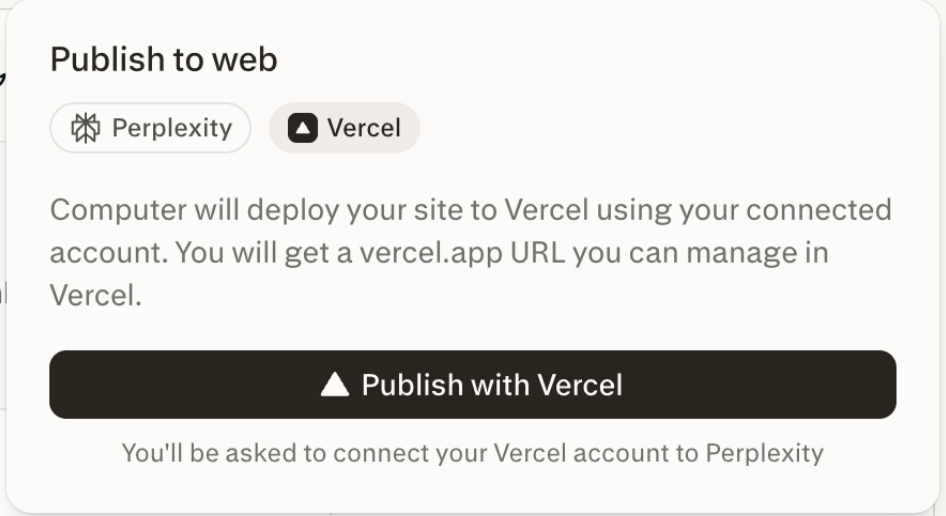
To connect your account, follow the Vercel connector prompt if you haven’t linked Vercel yet.
To find your published link or set a custom domain, ask Computer to retrieve or manage your Vercel site.
See About publishing with Vercel above for more on how this option works.
Turning off public website publishing (organization admins)
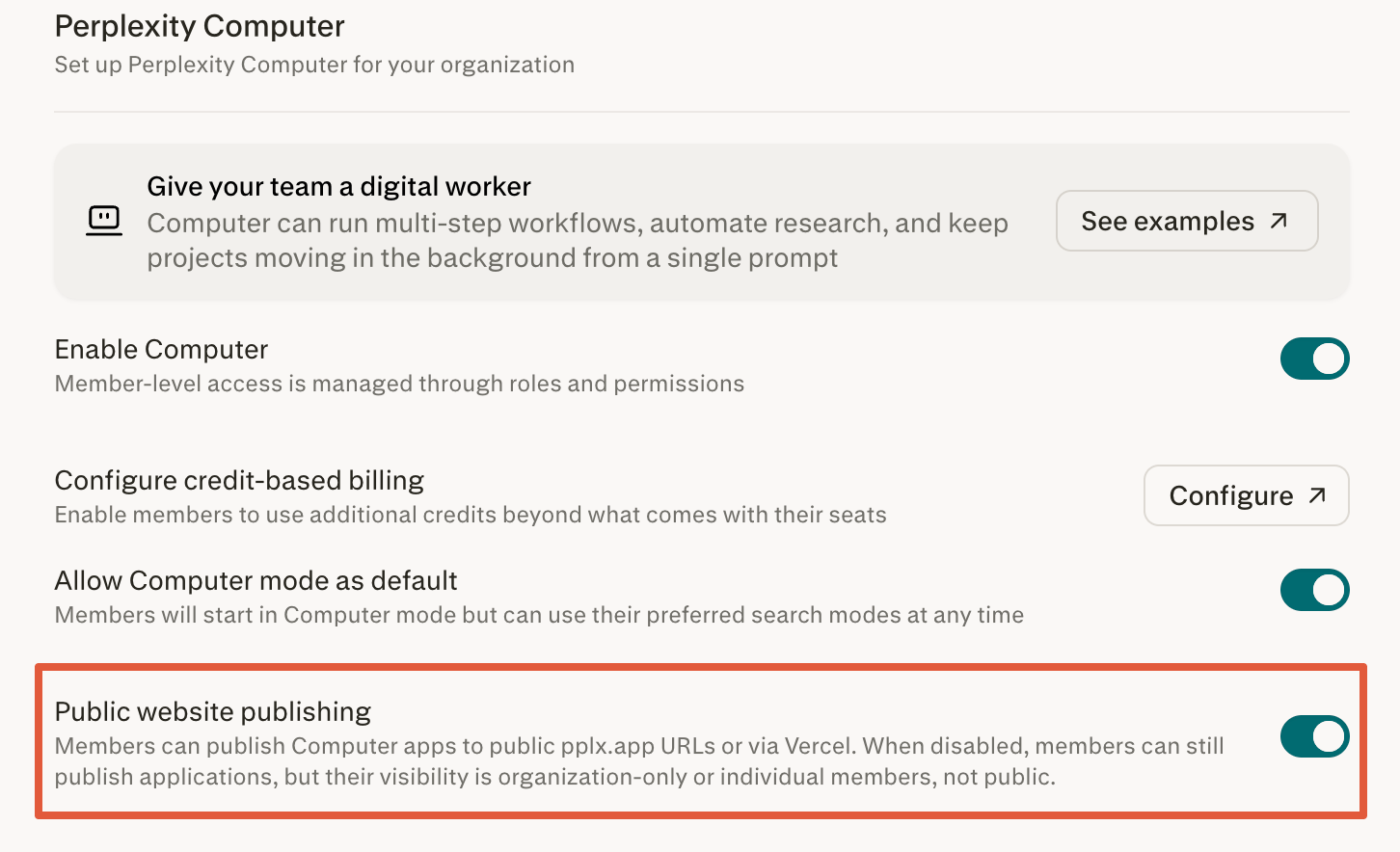
Organization admins can disable public website publishing from Organization Settings > Computer. When it’s off, users can still publish pplx.app sites but can’t make them public — only private, specific people, or organization — and the Publish with Vercel option is removed from the Publish dropdown.
Frequently asked questions
What’s the difference between “Publish to Perplexity” and “Publish with Vercel”?
Publish to Perplexity hosts your site on a Perplexity pplx.app URL with built-in visibility controls, so it can stay private or organization-only even after publishing. Publish with Vercel deploys your site to Vercel through the Vercel connector, which is the path to use for custom domains and Vercel-managed infrastructure.
Can I publish a private site?
Yes. A published pplx.app site can be private to you, limited to your organization, shared with specific people, or made public. Publishing and visibility are separate — publishing a site does not make it public unless you choose that visibility level.
Can I publish a website I brought in from another source?
Publishing is available for websites within a Computer task. If you have website files from elsewhere, you can upload them into a task and ask Computer to build and publish the site to a pplx.app URL.
How do I find or manage my Vercel site later?
Ask Computer to perform an action. Because Vercel sites are managed through the connector rather than stored separately, you can request the published link, check details, or adjust settings by continuing the conversation.
Can my organization turn off web publishing?
Publishing is designed with enterprise access control in mind — organization sites are organization-only by default and enforce your chosen visibility. Organization admins can disable public sharing from Organization Settings > Computer.