

What are Scheduled Tasks in Computer?
Scheduled Tasks let Perplexity Computer run recurring work for you in the background — monitoring, reports, alerts, inbox checks, competitive tracking, daily briefings, and more — on a schedule you set. Computer runs each task autonomously in the cloud, so your laptop doesn’t need to be open. When something noteworthy happens, Computer sends you a notification and saves the full result to the task’s session. Scheduled Tasks live inside Computer on the Automations dashboard (perplexity.ai/computer/automations). Your Computer conversations
stay under Computer (perplexity.ai/computer/tasks). Scheduled
Tasks replace the older Perplexity Tasks experience and are built on Computer’s
agent system, which means a scheduled task can use the same tools, connectors,
and subagents — the helper agents Computer delegates parts of a task to — that
you’d use in a one-off Computer conversation.
Scheduled Tasks in Computer are different from one-time reminders. If you just
want Computer to do something once at a specific time (“remind me at 4pm”,
“send this email tomorrow at 9am”), Computer handles that as a one-time wait,
not a recurring task.
Creating a Scheduled Task
You don’t fill out a fixed form. You describe what you want in plain language inside Computer, and Computer proposes a schedule for your confirmation.1
Open Computer from the left sidebar.
2
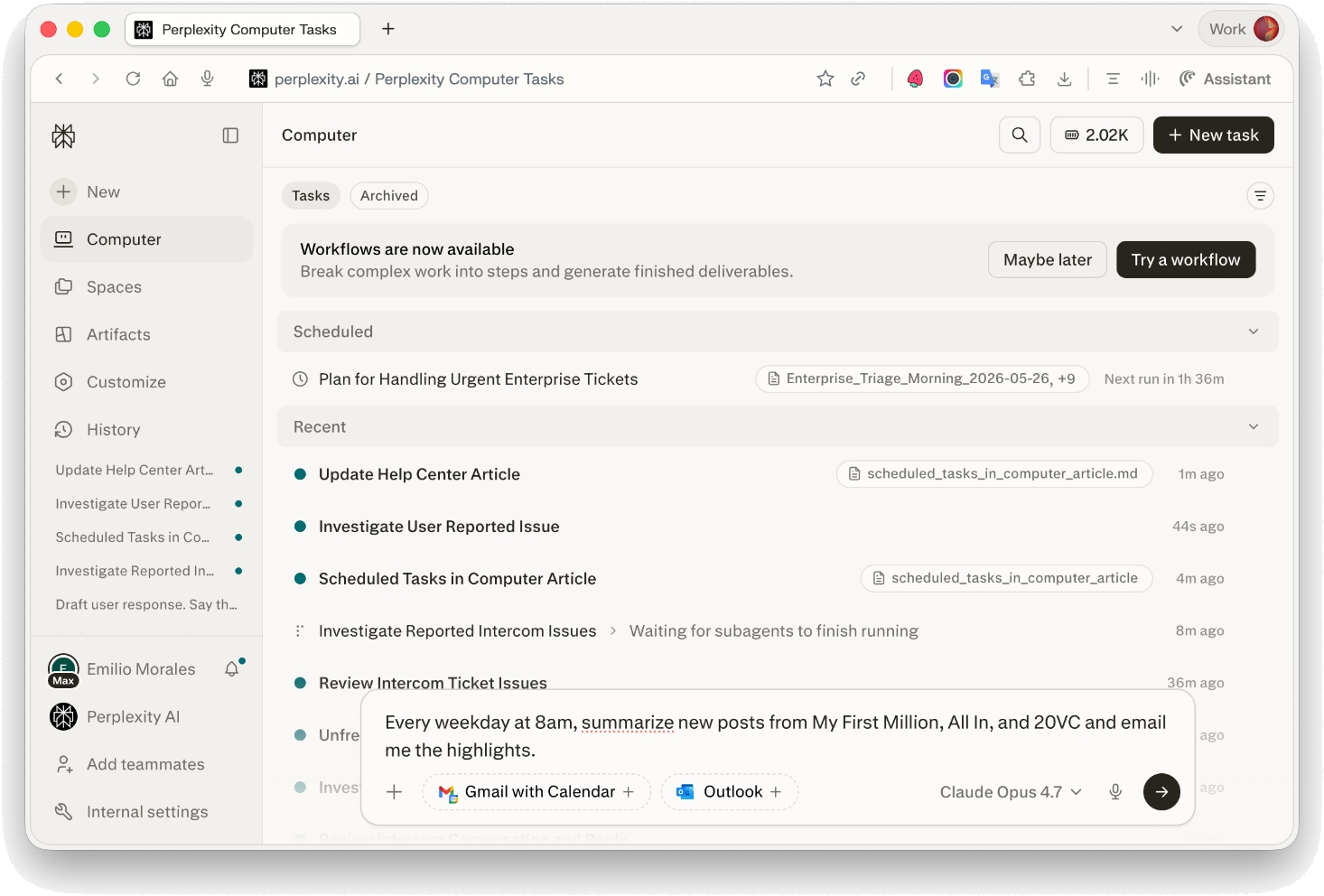
In the input box, describe the recurring task and the cadence. For example:
- “Every weekday at 8am, summarize new posts from My First Million, All In, and 20VC and email me the highlights.”
- “Check my Gmail every hour for replies from investors and notify me when one arrives.”
- “Every Monday at 9am, pull our sales pipeline from Salesforce and post a summary to #revenue in Slack.”
3
Confirm the schedule and what the task will do. Computer reminds you that
each run uses credits. Approve to create the task.
4
Your task now appears on the Automations dashboard, with the next run
time shown.
How to verify it worked
Open the Automations dashboard. The task appears under Active with its cadence and next run time.Supported schedules
Scheduled Tasks support any recurring cadence as long as it runs no more often than once per hour. Supported cadences:- Hourly
- Daily (at a specific time)
- Every weekday
- Weekly (specific day and time)
- Monthly
- Custom recurring schedules
- Sub-hourly cadences (more often than once per hour).
- One-time actions — use a one-time reminder instead (“remind me once tomorrow at 9am”).
Background vs. attended tasks
Most scheduled tasks run in the background, meaning Computer spins up a fresh, isolated agent for each run with no prior conversation context. This is ideal for:- Monitoring (prices, news, mentions, inboxes)
- Recurring reports and briefings
- Alerts and notifications
- Generate a document (PDF, Word, PowerPoint, Excel)
- Drive a browser (book something, fill a form, log into a site)
- Publish or update a hosted website
- Build on context from the conversation that created it
Using connectors in Scheduled Tasks
Scheduled Tasks can use any connector you’ve linked to Computer, including Gmail, Slack, and Salesforce. Manage these from Customize in the left sidebar (perplexity.ai/computer/connectors).
If a connector becomes disconnected or its authorization expires, Computer will
surface a reconnect prompt the next time the task runs. After repeated failures
on the same connector issue, Computer may pause the task so it doesn’t keep
using credits while blocked — you’ll be notified, and once you’ve reconnected
you can select Enable in that row’s Actions menu to start it again.
Notifications
When a scheduled task produces something new or noteworthy, Computer notifies you. Available channels:- In-app (default)
- Mobile push (via the Perplexity iOS/Android app)
- Web push
Managing your Scheduled Tasks
Open the Automations dashboard to see all your scheduled tasks, grouped under Active, Paused, and Completed. Each row shows the cadence and the next run time. Open the row’s Actions menu for Run now, Pause, Edit, Pin, and Delete, or select the task to open its detail page.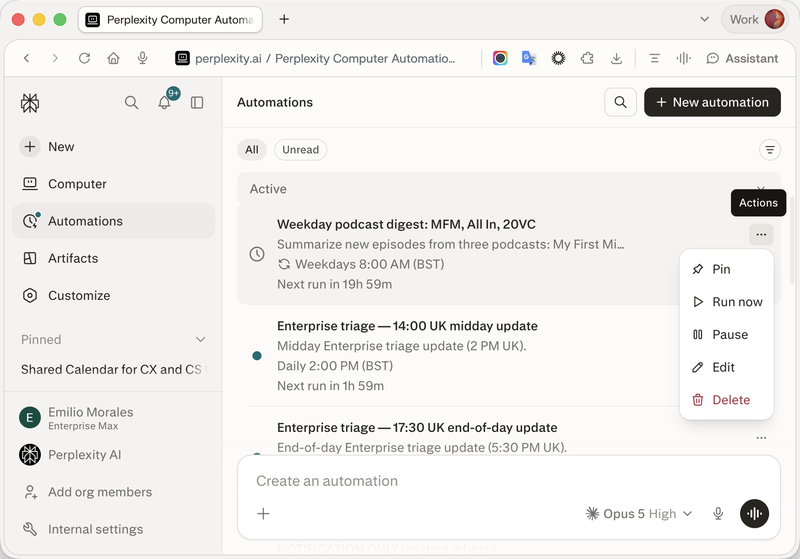
- See the next run time and recent run history
- Review past results and notifications
- Update the schedule or the instructions (“change this to every weekday at 7am instead”, “also include TechCrunch in the sources”)
- Pause the task, and Enable it again later
- Delete the task
Tasks from other conversations
Each Computer conversation can own up to 15 scheduled tasks. Tasks created in one conversation are managed from that conversation. To find and manage a task created elsewhere, open the Automations dashboard for a unified view, or open the task’s own URL atperplexity.ai/computer/automations/<automation-id>.
Credits and billing
Each time a scheduled task runs, it uses Computer credits — just like any other Computer work. A few things to keep in mind:- Computer will tell you the schedule and remind you that each run uses credits before creating the task.
- If your account runs out of credits, or doesn’t have Computer access at the moment of a scheduled run, that run is skipped.
- Max and Enterprise Max plans include monthly complimentary credits for Computer tasks. See your plan details in Settings → Subscription.
After repeated skipped runs, the task is paused, and it stays paused after
credits are available again. Open the Automations dashboard and select
Enable in each paused row’s Actions menu to start it again, or Run
now for a catch-up run.
Troubleshooting
My task didn’t run when I expected. Background tasks may take a few minutes to start after their scheduled time. If a run was skipped:- Open the task’s detail page and check the most recent run. Common reasons are insufficient credits, an expired connector authorization, or a task waiting on your input.
- Check whether the task now reads Paused on the Automations dashboard. A paused task does not restart on its own, even once the original problem is fixed.
- Open the row’s Actions menu and select Enable, then Run now if you want a catch-up run.
Still not working?
Contact us via Help > Contact Support. Include the task name, the run time you expected, the status shown on the row, the exact error message if there is one, and the steps from this article that did not resolve the issue.Availability
Scheduled Tasks in Computer are available wherever Computer is available. Specific plan-tier limits on the number of active scheduled tasks are managed at the conversation level (up to 15 per conversation). For plan-level Computer access and credit allowances, see your subscription details.Related articles
- Delete scheduled tasks: Perplexity Tasks vs. Computer
- What is Computer?
- Effort mode in Perplexity Computer
- Computer for Enterprise