

What are skills?
Skills are more than reusable instruction sets — they deploy agents. A skill gives Perplexity Computer a methodology for a type of task. Computer then dispatches dedicated sub-agents to carry the work out, often several in parallel, each handling one part of the task and reporting back. The result is consistent, high-quality output for that type of task.
Skills operate similarly to AI workers you can recruit for specific jobs. When you need a presentation built, a dataset analyzed, or research conducted, you don’t install software — Computer deploys the right specialist agents for the task and coordinates their work.
For example, the Slides skill directs Computer through building polished presentations. The Research skill deploys research sub-agents that work through a rigorous multi-round methodology in parallel, with source validation and citations.
Skills activate on demand based on your query. They are part of Perplexity Computer, so they are available on every plan that includes Computer. You can open them from the Skills page, or they activate automatically when relevant during a conversation.
Skills work together
Computer often combines multiple skills — and the sub-agents each one deploys — to complete a complex task. For example, a research project might use the Research skill to run several research agents in parallel to gather information. Computer can then hand off to the Research Report skill to format findings, or pass to the Slides skill to create a presentation. Computer orchestrates these agents automatically behind the scenes.
Creating your own skills
Computer includes a suite of built-in skills out of the box. However, if these don’t match your specific workflow, you can create custom skills to tailor Perplexity’s behavior for your own workflows. There are two ways to do this:
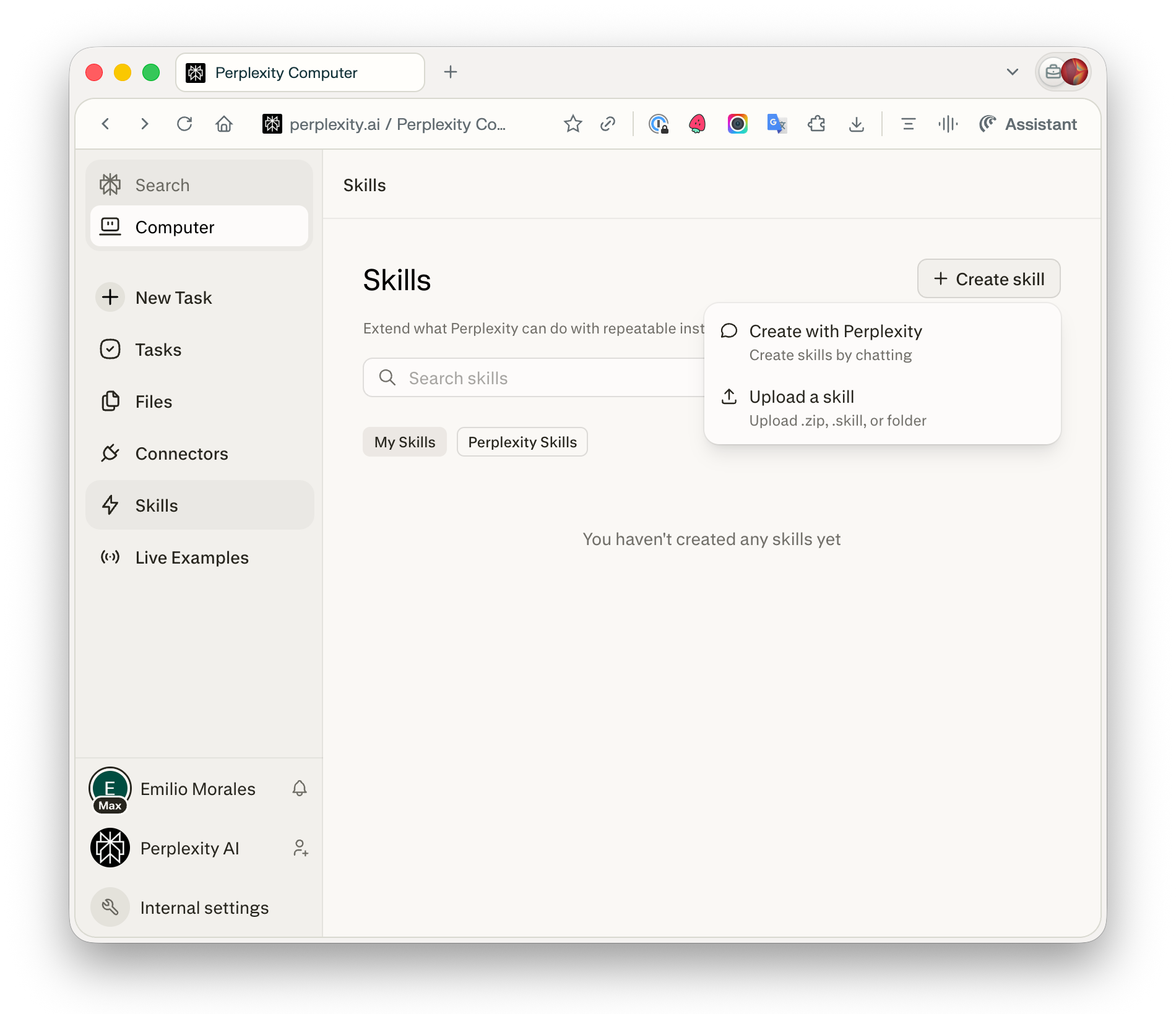
Create with Perplexity
In Computer, go to the Skills page
Click Create skill
Select Create with Perplexity
Describe the task you want the skill to handle — Perplexity will help you build the skill through a conversation
This is the easiest way to get started and doesn’t require any technical knowledge.
Upload a skill
If you prefer to import existing skills, you can upload them directly:
In Computer, go to the Skills page
Click Create skill
Select Upload a skill
Drag and drop your file or click to browse
File requirements:
Upload a
.zipfile with aSKILL.mdfile at the root level, or upload a.mdfile directlySKILL.mdmust include a YAML frontmatter block with a name and descriptionMaximum file size: 10 MB
Example SKILL.md format:
Tips for writing effective skills:
The description field is critical — Perplexity uses it to decide when to activate the skill, so include keywords and trigger phrases (e.g., “Use when asked to create a presentation”)
The name must be lowercase with hyphens only (e.g.,
my-custom-skill), between 1 and 64 charactersInclude clear step-by-step instructions in the body of the file
Add examples of expected inputs and outputs whenever possible
How to verify it worked
A skill you create or upload appears under My Skills on the Skills page. Open it to confirm the name and description are correct, since the description is what Computer matches against when it decides whether to activate the skill.
Managing skills
Browsing and searching
The Skills page has two tabs:
My Skills — Skills you’ve created or uploaded
Perplexity Skills — Perplexity’s built-in skill library
Use the search bar to find skills by name or description across both tabs.
Viewing skill details
Click a skill to open a detailed view that shows its name and description.
Deleting skills
You can delete skills you’ve created from the My Skills tab. You cannot delete built-in Perplexity Skills.
How skills work during a conversation
When you start a task in Perplexity Computer, relevant skills load automatically based on what you’re asking for. Computer recognizes the type of work and deploys the right agents and capabilities for it.
Examples:
Ask to “create a presentation about Q1 results” → The Slides skill activates
Request “a detailed analysis of renewable energy trends” → The Research skill kicks in
Say “show me a chart of monthly revenue” → The Chart skill handles visualization
Your custom skills work the same way. Once created, they’re available in future conversations and will activate when their description matches what you’re asking for.
Skills can collaborate. When a task needs multiple capabilities, skills — and the agents they deploy — work together seamlessly. You maintain full control — skills only activate when they’re relevant to your current task.