

Who can access effort mode
Effort mode is available in Computer on the web. Once you have set an effort level, Computer selects the model and reasoning level behind it, so you do not have to know each model’s capabilities or pricing. Effort mode is not available in the following places:- The macOS and Windows desktop apps, which continue to show the regular model picker.
- The mobile apps for iOS and Android.
For Perplexity Enterprise: if your organization has disabled a model, effort
mode continues to respect that configuration. When a setting would use a model
your organization has disabled, Computer falls back to another model instead.
Why effort mode matters
- One decision instead of several. Choose how much effort a task deserves, rather than picking a model and a reasoning level separately.
- Clearer credit trade-offs. Lower settings use less expensive models than High and Ultra, so routine work does not have to consume the same credits as your most demanding work.
- Full control when you want it. Custom mode remains available when you would rather choose a specific model and reasoning level yourself.
How effort mode works
Computer carries out a task by orchestrating models and supporting agents. An effort setting selects the model that coordinates the task and how deeply that model reasons. The coordinating model then decides how to approach the work and delegates parts of it to supporting agents. An effort setting does not put a limit on the work itself. It does not cap the number of steps Computer takes, the number of sources it reads, or the tools it uses, and it is not a spending limit. Perplexity pairs each setting with a model based on evaluation results, and shows that model name in the effort selector. Those pairings change as models are added, updated, or retired, so treat the name in the selector as the current answer rather than a permanent one. The effort settings themselves stay the same.The four effort settings
Table 1 — What each effort setting is suited to, with an example task.
Higher is not automatically better. High and Ultra take longer and use more
credits, and a well-specified task often finishes as well on Light or Standard.
Ultra is best reserved for problems where you expect to weigh several
approaches.
How to change your effort setting
1
Open Computer on the web.
2
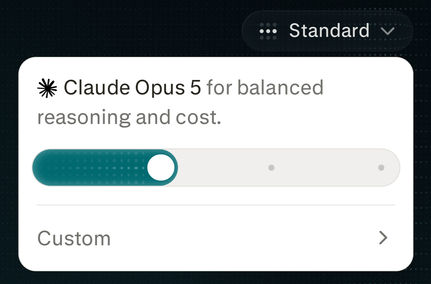
Select the effort selector at the bottom of the prompt box, next to where
the current model name appears.
3
Move the slider to Light, Standard, High, or Ultra.
4
Enter your prompt and submit it.
How to verify it worked
The effort selector shows your chosen setting and the model paired with it before you submit. After the task starts, that setting stays in effect for the conversation until you change it.Choosing a model yourself with Custom
Select Custom in the effort selector to choose an available model and its supported reasoning level, along with any speed settings offered for that model. There are no separate controls for supporting agents. To go back to a preset, reopen the selector and choose Light, Standard, High, or Ultra.How your setting is saved and applied
- New tasks use the setting saved in the browser you are working in. Setting Ultra on your laptop does not change the setting on another computer.
- Follow-ups keep the setting the conversation is already using, unless you change it.
- A change applies to your next submission. It does not change work that is already running.
If you lower the setting while a task is running, the running work continues at
the setting it started with. To run the task at a lower setting, start it again.