

How can I invite new users into the organization?
From the Members screen in your Organization settings page, you can invite a single or multiple users: enter the email(s) of the user(s) you would like to invite separated by commas in Invite new members, choose Enterprise Pro or Enterprise Max, and then click ”+”. They will be prompted to create a Perplexity account if they don’t have one.
If a seat is available in the tier you selected, the invitation sends straight away. If it is not, you are asked to confirm the seats the invitation needs before it is sent.
Note: A pending invitation holds its seat until it is accepted, canceled, or declined, and appears in the Invited row of your seat counts. Cancel invitations you no longer need so the seat becomes available again. See How Enterprise seats work.
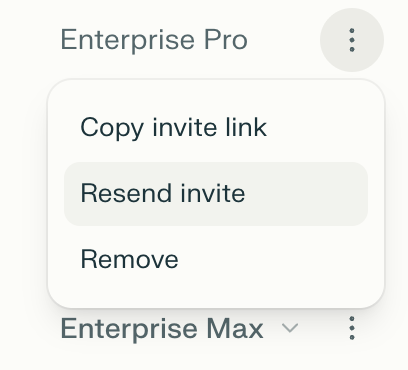
From that screen you can also resend any pending invites, by clicking the three dots button (⋮) next to the email of the person you want to remind of the invite.
Can users belong to more than one Enterprise organization?
Users can only belong to one Enterprise organization.
If you see a “User is already part of another organization” error message when inviting someone to your organization, it means they’re currently associated with a different Enterprise organization—either by joining or creating one previously. To accept a new invitation, they must first leave or delete their current organization.
If you require assistance, reach out to support and include the user(s) you want to invite. Their consent is required for removal from their existing organization.
How can I remove a user from the organization?
From the Members screen in your Organization settings page, click the three dots button (⋮) next to the user you would like to remove from the organization, and then click Remove.
Their seat becomes available for another member straight away. Your purchased seat count and recurring charge do not change. To pay for fewer seats, an admin reduces the seat count in Billing, which takes effect at the start of your next billing period.
Can I transfer a seat to another user?
Yes. Remove the member who currently holds the seat, then invite the new person to the same tier. The freed seat is available immediately, so no new purchase is needed.
Your purchased seat count does not change, and no prorated credit is issued for the person you removed.
Will other members have access to my previous or new Sessions?
No, your sessions and projects stay private by default. Sessions can be made shareable — depending on your organization’s sharing policy, a shared session can be viewed by anyone with the link. Projects cannot be shared publicly: other members can access a Project only if they are invited, the Project is shared with the organization, or their request to join is approved.
What if a member of my organization already has a personal Pro subscription?
If you invite a user with a personal Pro subscription into your organization, their subscription will change to Enterprise (Pro or Max). They will receive a credit for the remainder of their billing period. This credit will be deducted from any Perplexity plan they purchase in the future. Alternatively, they can contact us to request a refund.
How to prevent personal emails joining an Enterprise organization
To prevent members from joining your Enterprise organization using their personal emails, you’ll need to set up SSO. This pushes all authentication to your company’s identity provider, which controls allowed domains and prevents personal emails from joining.
To ensure that only members using allowed domains join your organization, follow these steps:
Implement Single Sign-On (SSO). Perplexity supports SSO for Enterprise organizations. You can find how to set this up here.
Require all users to authenticate via your company’s identity provider (e.g., Okta, Azure AD, Google Workspace SSO).
If you cannot implement SSO, ensure that you only invite users to join your organization by entering their corporate email addresses into the admin portal. Avoid enabling a shareable Invite Link, as links could be misused if distributed externally.
Disable the Invite new users option in Permissions. This will ensure that existing members can’t invite external users to your organization.
We also recommend that you periodically review the members list in your Organization settings, and that you remove any accounts using non-corporate domains or personal emails.