

What is a Project?
A Project is a persistent, shareable workspace in Perplexity that keeps everything for an ongoing effort in one hub — your Search conversations, your Perplexity Computer tasks, files, custom instructions, connected tools, and the context Perplexity builds up as you work. Instead of one-off tasks, a Project lets you and any collaborators return to the same body of work over time.
Creating a Project
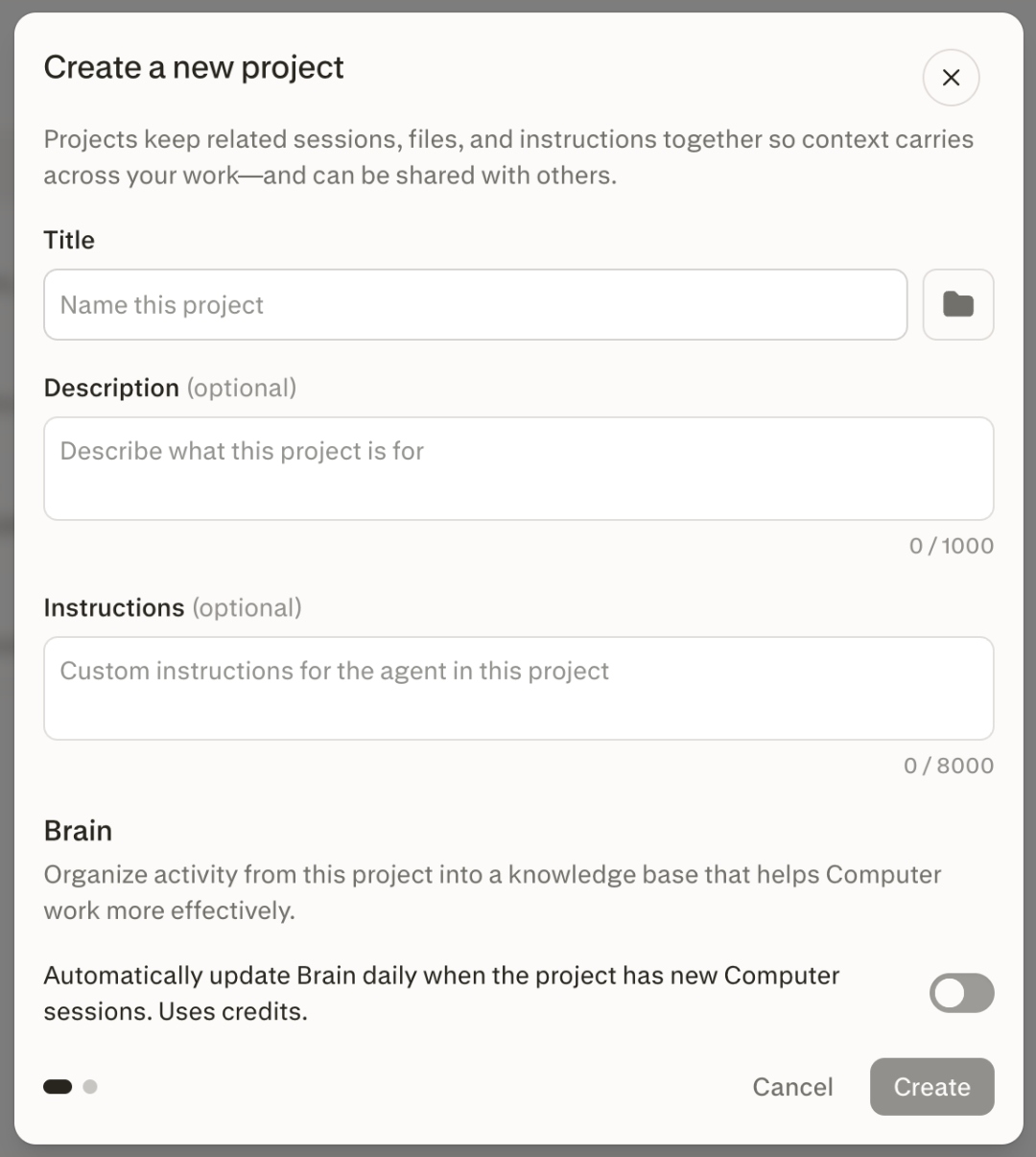
Select the Projects section in the left sidebar to open your projects menu, then select + New project. You can also select the + hover option in the Projects header.
Give your Project a title (up to 50 characters), an optional description (up to 1,000 characters), and an optional icon and color to make it easy to recognize.
Add instructions (up to 8,000 characters) that tell Computer how to work inside this Project — for example, a preferred response format or a status file to keep updated.
Choose who to share with. Projects are private (Restricted) by default.
You can also start a Project from an existing session, and Perplexity will suggest a title, description, and instructions based on it. In a Computer task, use Convert session to project to create a Project and carry your files and artifacts into it, or ask Computer to create a Project from one or more existing sessions.
There’s no limit on how many Projects you can create.
Collaboration and sharing
Select the list of project members at the top right of a Project, or the Share button, to manage access and sharing permissions.
Roles
Owner — full control.
Can edit — edit context, files, connectors, skills, people, defaults, and channels.
Can view — read the Project and its shared sessions and files.
Access scopes
Restricted — invited people only. This is the default.
Organization can view.
Organization can edit.
Projects are private by default and cannot be made publicly queryable. Owners can invite members or, for eligible organizations, share access within their organization. People who open a Project without access see a request-to-join banner and can query the Project once their request is approved.
On Enterprise plans, organization-wide sharing scopes are available, and administrators can restrict external invites and organization-wide publishing. See Enterprise roles and permissions.
Contributor limits
The number of people you can invite to a Project depends on your plan:
Enterprise Pro and Enterprise Max: up to 9,999 people.
Perplexity Pro and Perplexity Max: up to 5 people.
Any account that belongs to an organization gets the 9,999 limit, as do verified students and educators.
The owner doesn’t count toward the limit, but pending invitations do, and people you invite as viewers count alongside editors.
Sharing a Project with your whole organization, instead of inviting people one at a time, doesn’t count toward this limit.
If a Project reaches its limit, Perplexity tells you the Project has reached the maximum number of contributors. Cancel a pending invitation or remove a contributor to free up a place.
Project files
Each Project has access to Files. You can upload persistent files individually or as folders, and add files from connected sources to serve as context in a Project. Computer can also create, update, and manage files on your behalf.
Files in a Project are shared with project members who have the appropriate permissions. Viewers and editors can view files, but only editors can edit, delete, or upload files.
Project file limits
Every Project holds up to 5,000 files and 2.5 GB of total storage, with each file up to 100 MB. These limits are the same for everyone, on every plan, and there is no restriction on file type.
To see what a Project is using, open its Settings tab, which shows the current file count and total storage.
Important: Projects created before August 2026 might contain more than 2.5 GB of files. These Projects will still work, but you won’t be able to upload new files to them.
For the limits that apply to sessions and organization files, see Enterprise file limits.
Files added from connectors
Files you add from a connected source are one-time copies. If you update or delete the original in the connected app, the copy in your Project does not change.
To work from current content, ask Perplexity to fetch the latest version through the connector, or add the file again.
Brain
Brain builds ongoing memory for all work done in a Project. You can view the current memory in the Brain tab.
Brain runs are billed to the creator of the Project, and you can control whether it runs automatically or manually in the memory section of the Settings tab.
Project settings
Additional context can be added and managed in the Settings tab by the project owner.
Context
Add and manage instructions used for every query run in the Project.
Add and manage web links and domains to prioritize.
Manage the default mode, Search or Computer, and set a default Computer orchestrator model.
Memory
Enable and manage project-level Brain settings. Brain builds live, updating knowledge from the Project’s activity to give Computer better context.
Enable and manage project summary settings. Project summary generates a running status update of the work done in a Project. If enabled, it also uses Brain for more context.
Control whether queries in the Project can draw from your individual memory.
Slack and Teams
Bind Slack or Teams channels to the Project, so context from those channels is included in project context and any Computer queries submitted in those channels appear in the Project’s session history.
Connectors
Choose which connectors the Project uses and add connector-specific instructions.
Add shared project-level credentials.
Important: Selecting a connector for a Project shares the source and its instructions with every member — it does not share any one member’s sign-in. For connectors that use your own account sign-in, such as Microsoft 365, Google Drive, or Notion, each member who wants results from that source must connect their own account.
Project-level credentials cover custom API credentials, such as a bearer token or API key added for Computer. They do not cover Microsoft 365 or other connector sign-ins.
Skills
Upload and manage reusable skills scoped to the Project. Personal and organization skills remain available inside a Project as well.
Files
See the Project’s current file count and total storage against its limits.
Organizing your Projects
Pin important Projects for quick access. Pinned Projects appear on the project overview page and in the Projects section of the left sidebar.