

The following guide walks you through the settings available to ensure secure, compliant, and efficient control of file access, sharing, and connected third-party apps within your organization.
Organization permissions can only be managed by administrators.
Heads up: Data Retention (including Enforce Incognito Mode), AI Model & Provider Settings, and Audit Log Settings now live in a separate Data and privacy section under Organization Settings. See Data Retention for Enterprise and Audit Logs for details on those settings, and the AI Model & Provider Settings section below for model provider controls.
File Permissions
These permissions allow you to control who can access files in your organization.
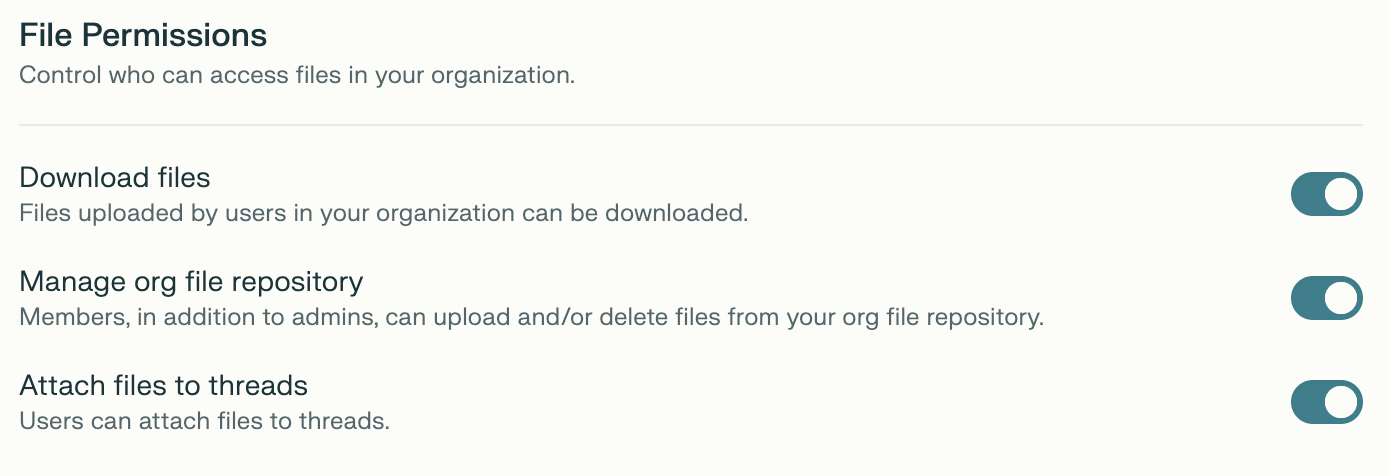
Download files
When this toggle is on, files uploaded by users in your organization can be downloaded by organization members from the shared repository or attached sessions. When toggled off, users (except for admins) cannot download these files.
This restriction helps protect sensitive data from being transferred outside the organization, ensuring better security and compliance, and giving administrators tighter control over how files are handled and shared within the platform.
Manage org file repository
When this toggle is on, any member can upload and delete files from your organization file repository. These are company-wide resources that anyone in the organization may rely on, and they’re used by Internal Knowledge Search to answer questions. Please note that organization file repository limits apply.
Attach files to Sessions
When this option is toggled off in Perplexity Enterprise, users are prevented from uploading or attaching files to any sessions within the organization’s workspace. Only admins can add files to discussions, while regular members lose this capability.
This restriction ensures tighter control over sharing and handling files, minimizing the risk of sensitive data being uploaded or circulated through sessions and maintaining organizational security standards.
Sharing Permissions
These settings allow administrators to control whether users can invite new users ot share content outside of the organization.
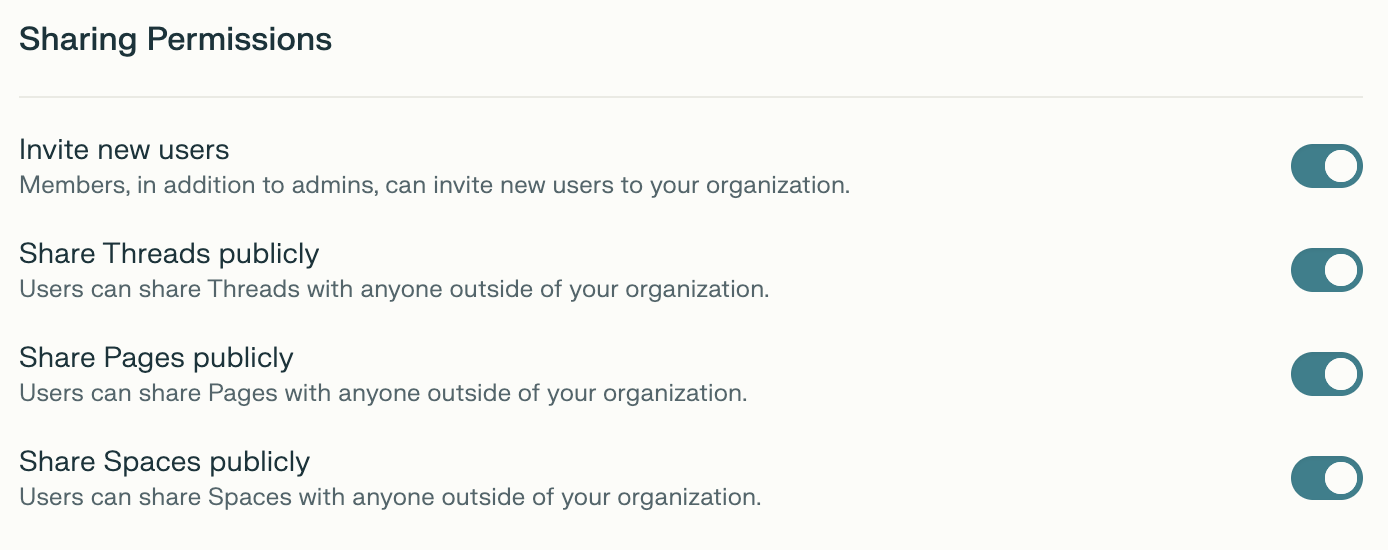
Invite new users
When this toggle is on, any existing member can invite new users to the organization. When this toggle is off, only admins can invite new members.
This setting allows admins to control who is invited to the organization, preventing unauthorized external access and unwanted fees for additional seats.
Share Sessions publicly
When this toggle is on, users can share sessions with anyone outside the organization, or even create a public link that can be accessed by anyone. If this option is toggled off, sessions can only be shared with other organization members.
Share Pages publicly
When this toggle is on, users can create public Pages that can be accessed by anyone with the link. If this option is toggled off, Pages can only be shared with other organization members.
Share Projects publicly
When this toggle is on, user can create a public link for any project they own, which allows anyone outside the organization to access them. If this option is toggled off, projects can only be shared with other organization members.
Please note that only organization members can be invited as contributors to a project.
Connector Permissions
These settings in allow administrators to manage which third-party cloud storage apps and data services can be accessed and integrated by users within the organization, ensuring only approved services are available for integration.
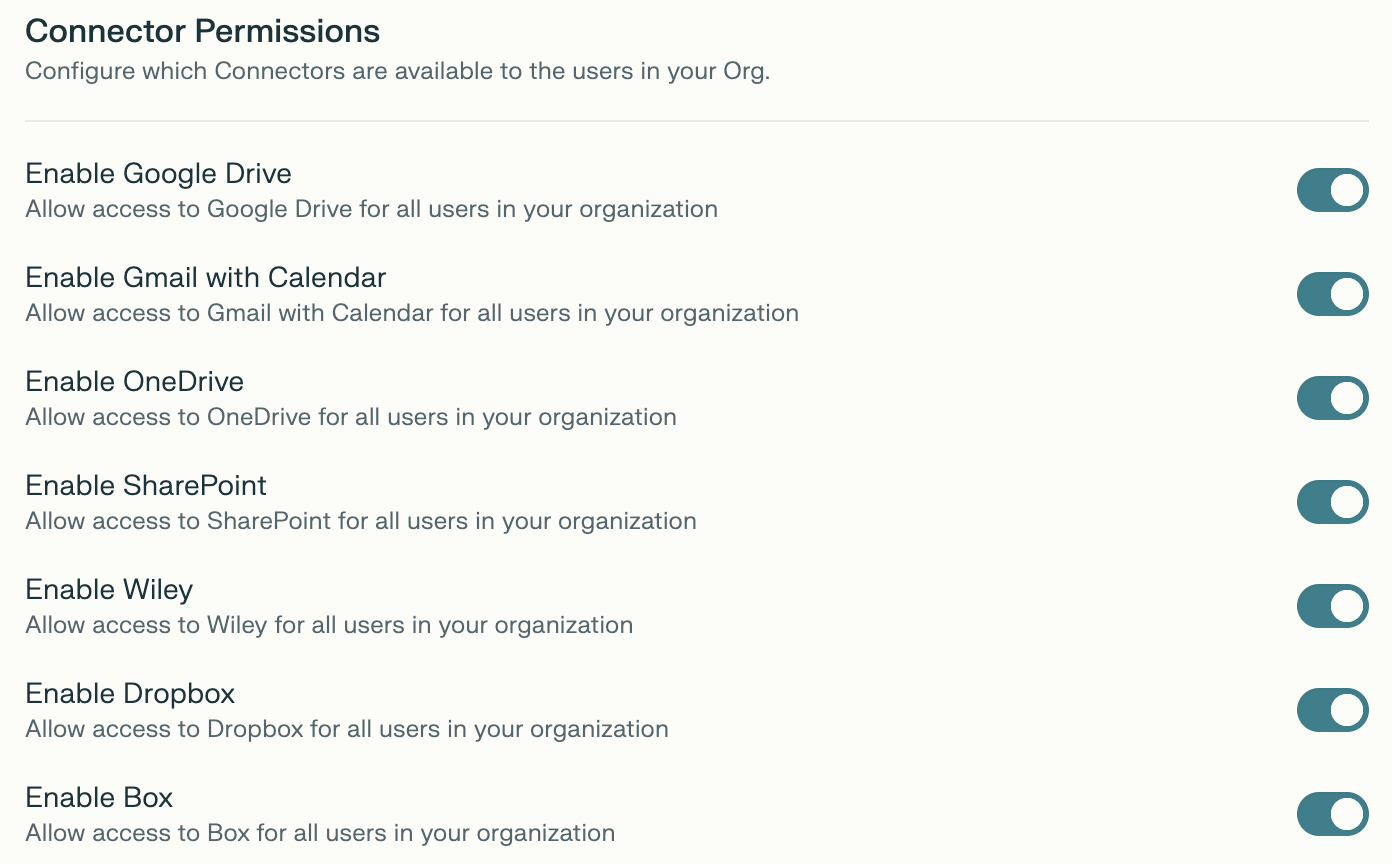
Admins can enable or disable the following App Connectors for the entire organization:
File Connectors:
Google Drive
OneDrive
SharePoint
Dropbox
Box
App Connectors:
Gmail and Google Calendar
Outlook
Linear
Notion
GitHub
Asana
Slack
Jira
Confluence
Admins are also able to enable or disable by default any new connectors that we launch from the Default permissions option.
AI Model & Provider Settings
Located in Organization Settings > Data and privacy. Configure the AI models available to your organization’s users. Core models from Anthropic, Google, and OpenAI are always enabled.
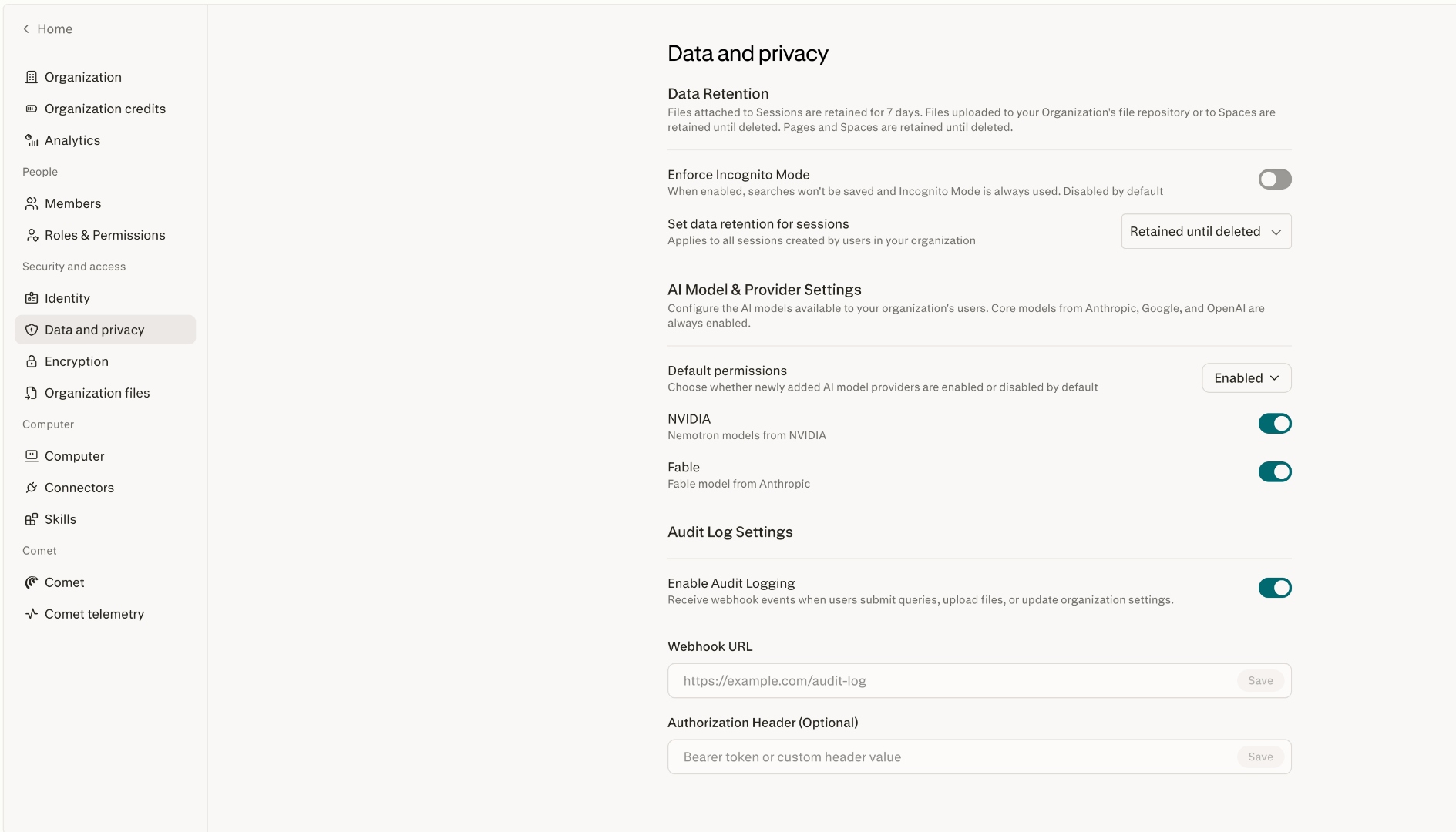
Default permissions
Choose whether newly added AI model providers are enabled or disabled by default for your organization. When set to Enabled, any new provider Perplexity adds is available immediately; set to Disabled, new providers stay off until an admin turns them on.
NVIDIA
Nemotron models from NVIDIA. Toggle off to prevent members of your organization from selecting NVIDIA models.