

What is a Session?
A session is like a conversation history that remembers everything you’ve discussed with Perplexity’s AI. Unlike traditional search queries that operate in isolation, sessions enable seamless, contextual conversations that build upon previous exchanges within the session. A session will include your initial question, any follow-up queries, all of Perplexity’s responses and all sources used to provide your answer.
Core Functions of Sessions
Seamless Conversation
Sessions work like a conversation project that keeps track of all the messages you exchange with Perplexity, remembering what you’ve talked about and keeping your discussion flowing smoothly from one question to the next. When you ask a follow-up question or when the AI gives you a response, it understands what you’ve been discussing together throughout your entire conversation,. This way you receive answers that make more sense and are more helpful for what you’re trying to learn or accomplish.
Persistent Memory
Because the AI has “memory” it can automatically handle context management even as conversations grow longer. This eliminates the need for you to manually repeat background information or context in subsequent queries.
Source Transparency
By weaving reliable sources directly into every session, Perplexity turns answers into traceable mini-research papers: transparent, verifiable, and easy to build upon. This ensures higher answer quality.
What can I use Sessions for?
Deep Topic Exploration
You can ask follow-up questions to dig deeper or explore new angles within a single thread. This allows for comprehensive exploration of all sorts of topics without losing the context established in earlier exchanges.
Iterative Problem Solving
Sessions support iterative workflows where you can:
Build upon previous responses to refine your understanding of the topic
Ask clarifying questions that reference earlier parts of the conversation
Develop ideas progressively through multiple exchanges
Context-Aware Research
Since threads ensure that the conversation history is maintained, you can conduct research where each query builds upon previous findings, creating a more coherent and comprehensive research experience.
Your Sessions History
Every session is stored in your History (../assets/img/a5c9b93551_library) which is only accessible to you. In your History you can view previous sessions and continue earlier conversations.
Sessions are stored in the History indefinitely but you can delete individual or all sessions at any time. Furthermore, you can filter your sessions by Search Mode (Pro, Research, or Create files and apps query) and from newest to oldest and vice versa.
If you use the Perplexity Tasks feature your Tasks sessions will also show in your History.
Creating, Managing and Sharing Sessions
Creating Sessions
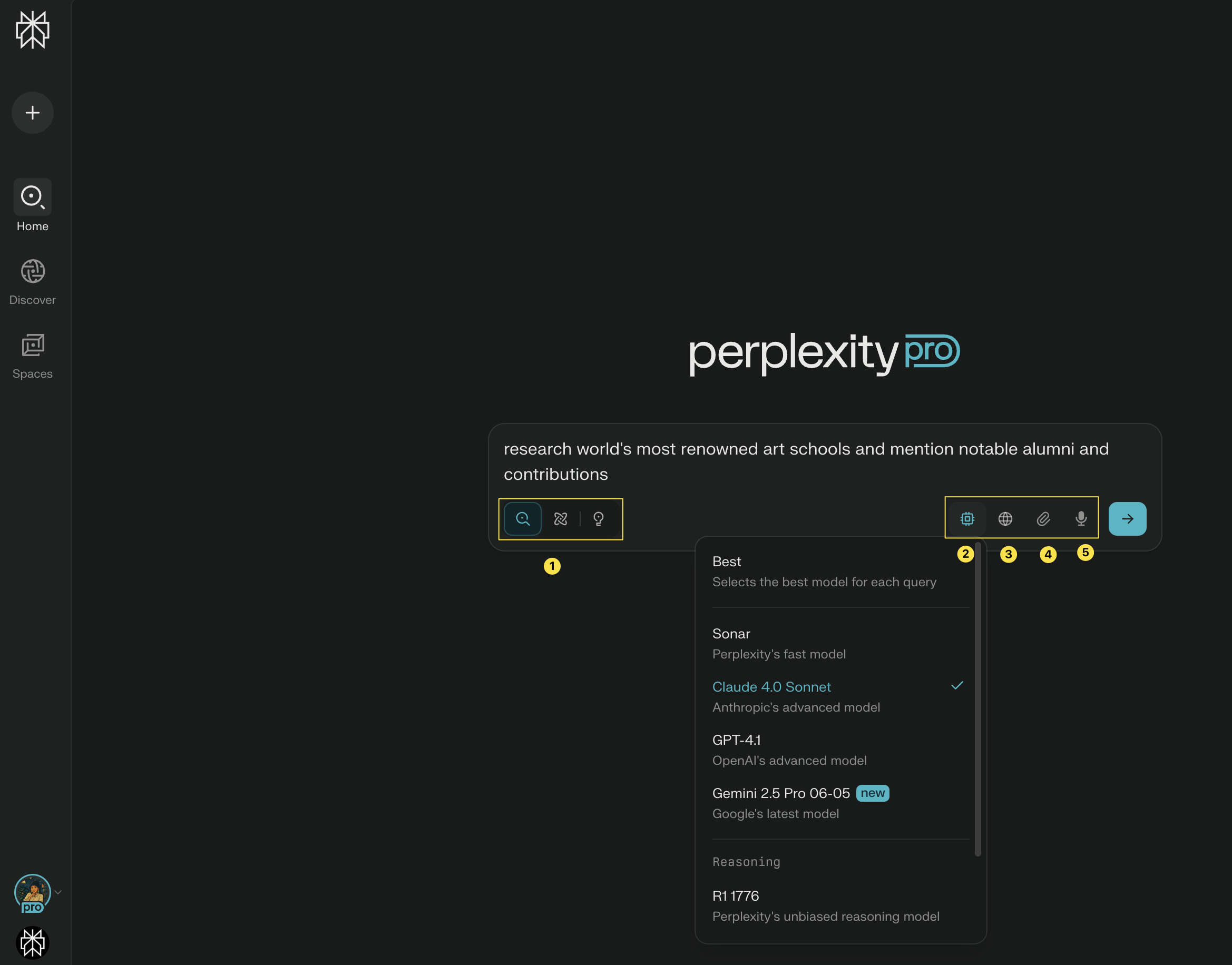
Creating a session is simple - to get started, go to the Search query box on your homepage and start typing your question or ask i.e. your prompt.
If you’re a paid subscriber you will also have the option to select from different Search Modes: Pro, Research, and Create files and apps (1) and select your AI model of choice (2). You can also specify your Sources, like Web or Academic (3) and attach files (4). You can also dictate your prompt - just click on microphone icon (5).
Managing your Sessions
To manage your sessions go to to your History page: ../assets/img/a5c9b93551_library.
In your History:
You will be able to see all of your sessions and use the Search bar to find specific sessions
Click Select to select multiple sessions for deletion
Use Type to sort sessions by Search Mode (sessions created in Research or Create files and apps)
Hide or show sessions created via Comet browser
Use Sorting to sort from Newest to Oldest and vice versa
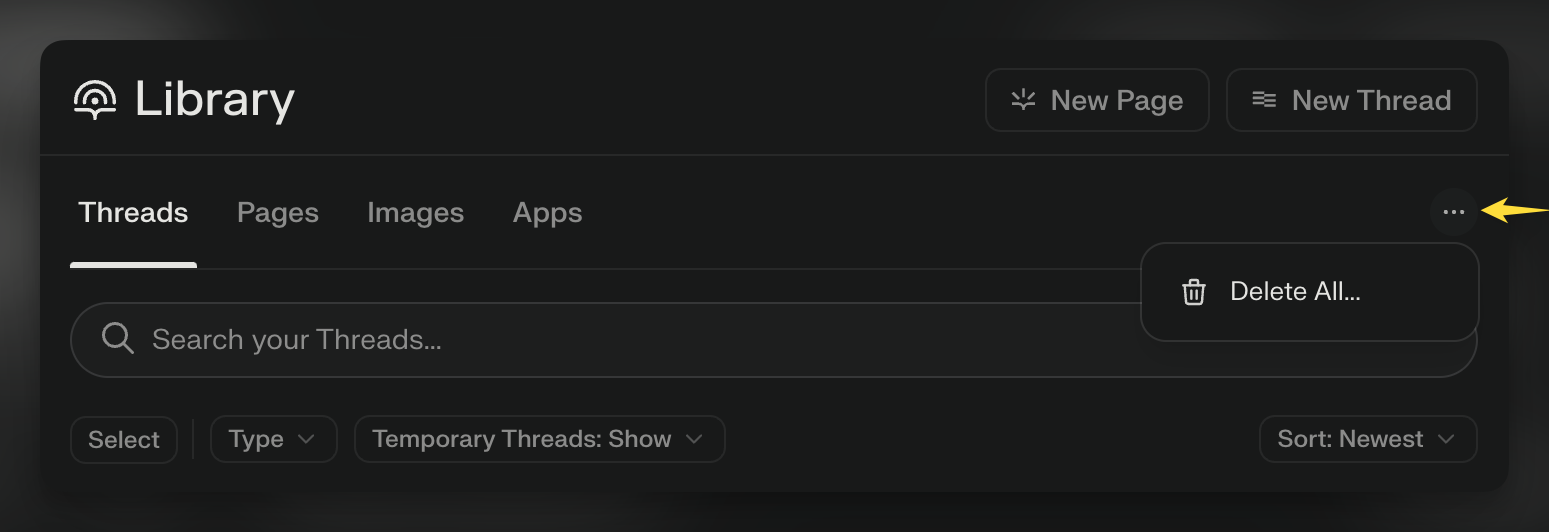
To delete all sessions in one go click on the dots menu on the right side of the screen:
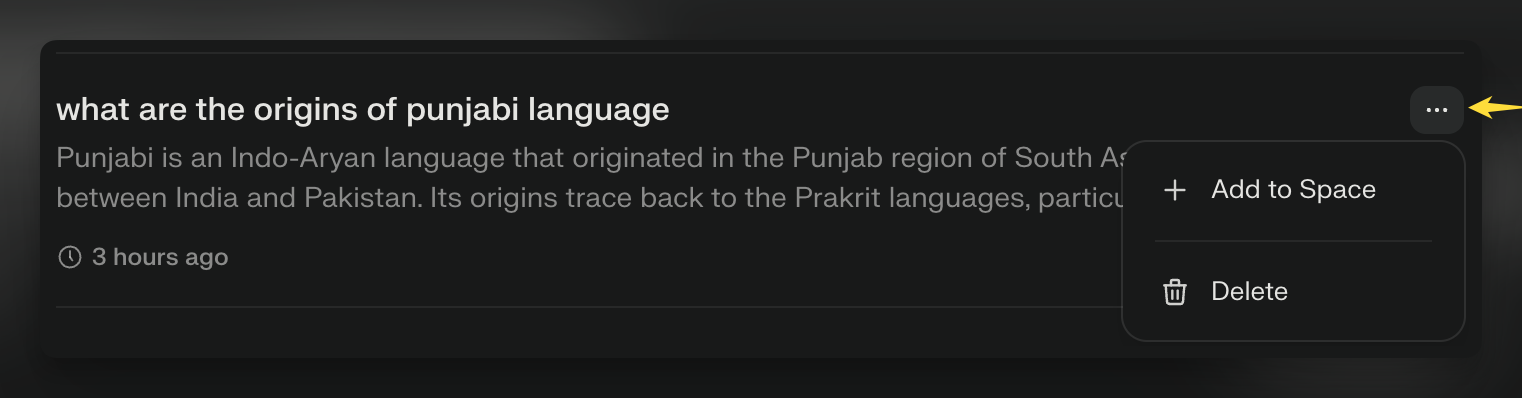
Alternatively, you can click the three dots menu on a specific session to either delete the session or Add it to a project:
Sharing your Sessions and more actions
To share a session click on the Share button on the top right side of the screen:
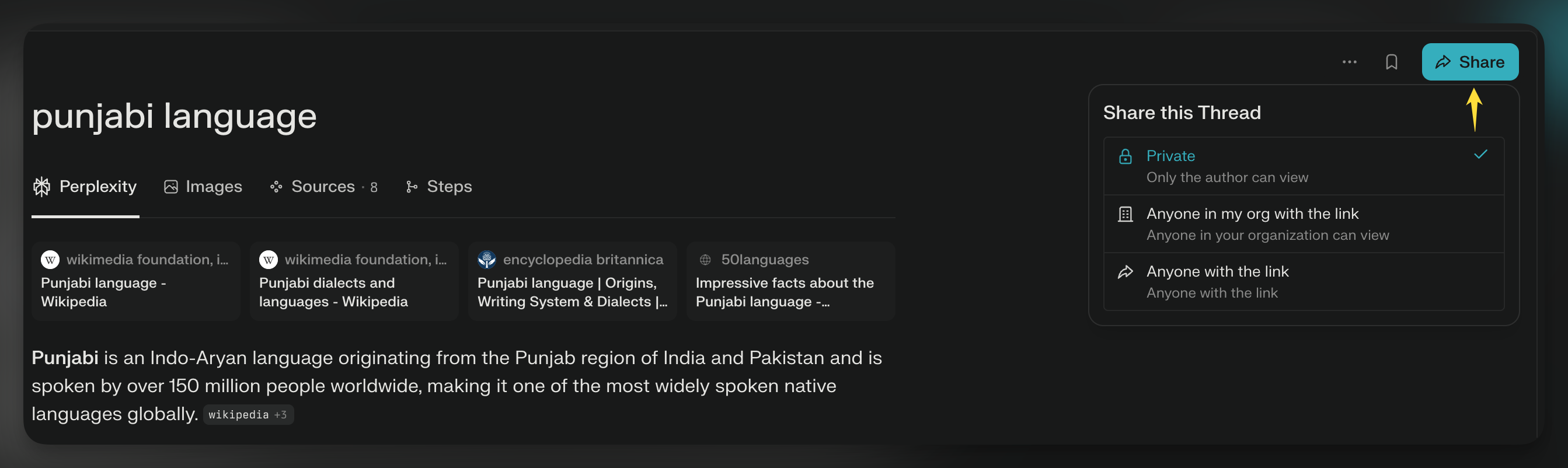
You can select from a few sharing options:
Private: The session stays private (only you as the Author can view it’s content) even if you have pasted the link somewhere publicly
Anyone with the link: anyone who has the link can open and view the content of the session and also share it on to others. If you no longer want the session to be public, you can change it back to Private (see above)
Anyone in my org with the link (for Enterprise Pro subscribers only)
When a session is public, anyone with access to the session can also add follow-up questions to but this will create a new session for the user (it won’t add the follow-up to the existing session).
More actions
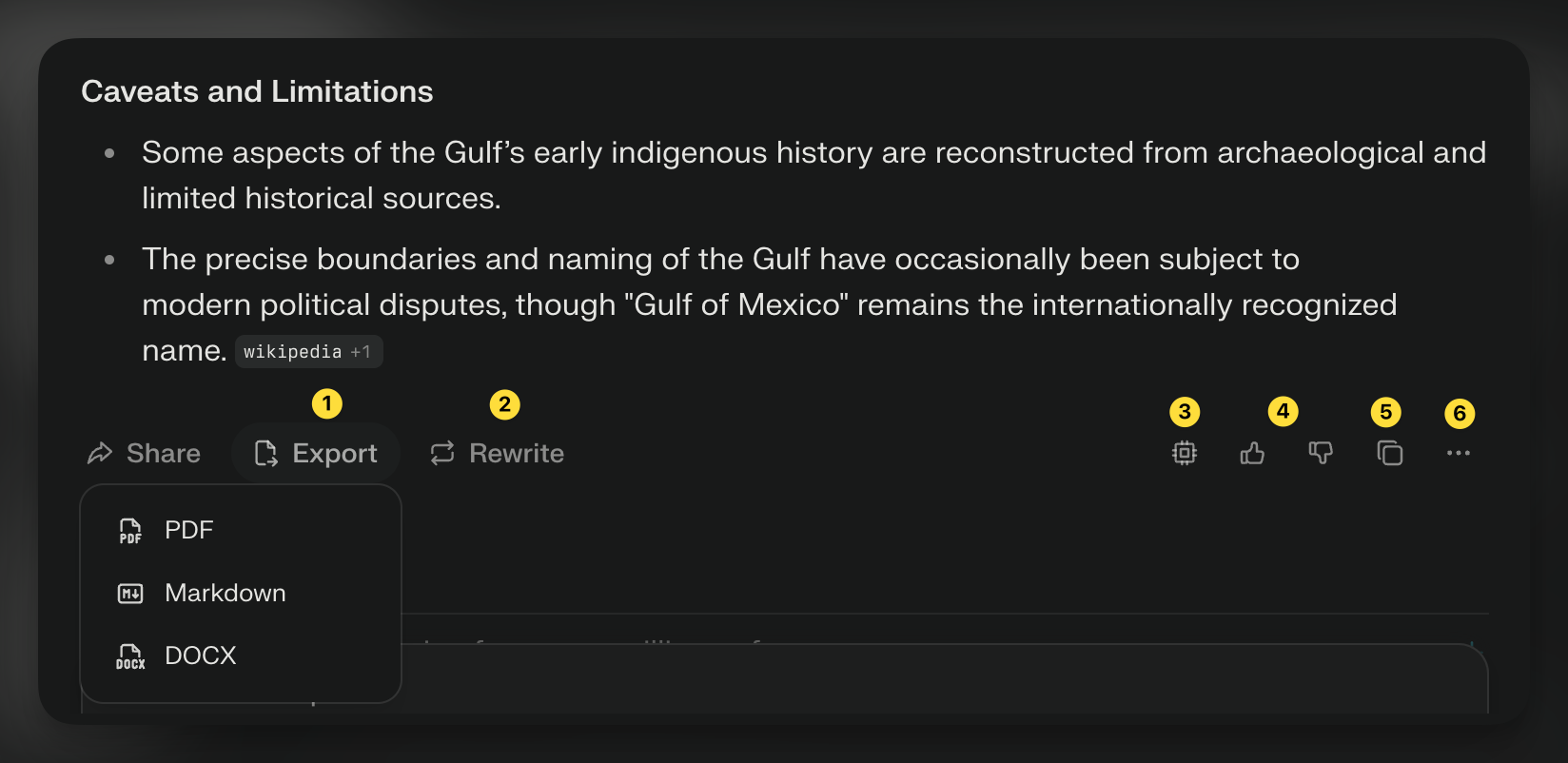
Export button (1) allows you to export the answer to the session as PDF, Markdown, or DOCX
Rewrite button (2) generates a new answer using a different model that you can select
Source button (3) tells you info about which Model, Search mode and Source mode was applied to the answer
Feedback (4) share with a thumbs up/down if you’re satisfied or dissatisfied with the answer provided
Copy button (5) copies the answer to your clipboard
Three dots menu (6): click this to view Sources, Report feedback or delete that portion of the session
To edit the original query, hover over the prompt and the edit icon will appead

FAQs
Can I recover a deleted Session?
Once a session is deleted, it cannot be retrieved. To prevent accidental deletions, we’ve added confirmation prompts.
What happens to Sessions when I’m not signed in?
When you create sessions while not signed into your Perplexity account, the author of the session is considered “anonymous,” and therefore, the session is not saved long-term. These anonymous sessions will be visible for 14 days, after which they will disappear permanently without the possibility of recovery.
To ensure that a session is accessible long-term, please sign into your account. All sessions created while signed in will be automatically saved to your session History.
Are my Sessions private?
Yes, your sessions are private and only for your reference by default. They only become public if you choose to share them.