

Self-transfer lets eligible Max and Pro customers move their subscription to a different email address themselves, without changing or deleting either account.
Important Notice
Changing your subscription email will create a completely new account. Your original data remains accessible in your original account when signing in with the old email address.
All threads, collections, and settings will remain in the old account permanently
You’ll need to sign in with the new email address to access the subscription
Data cannot be transferred between the two accounts
Your original account and all its data remain intact and accessible with your original email
What self-transfer does
Moves the subscription from one account to another by updating the email address tied to the subscription.
Leaves the original account itself intact (login, data, and settings stay as they are) and simply removes the subscription access from that account.
Activates the subscription on the new email/account once the transfer is completed.
Who can use self-transfer
Available to consumer Max and Pro customers on standard web-based plans.
Not available for Enterprise plans, which are managed directly with your organization’s account team.
Only subscriptions purchased on the web (via our website) are eligible; app store subscriptions (Apple/iOS App Store or Android/Google Play) cannot be transferred.
Plans that are not eligible
Discounted Education Pro subscriptions are not eligible for self-transfer because the SheerID verification record is permanently linked to the original account.
Enterprise subscriptions are ineligible for self-transfer and must be handled through your organization’s administrator or account representative.
Subscriptions billed through Apple/iOS or Android/Google Play are ineligible; ownership and billing for these is controlled by the app store provider.
Promotion-based subscriptions, including offers through partners such as Airtel or Revolut, are not eligible for self-transfer.
How to transfer your subscription
Sign in to the account that currently holds the subscription you want to transfer.
Go to Account Settings.
Next to your subscription details, click the “Transfer subscription” button.
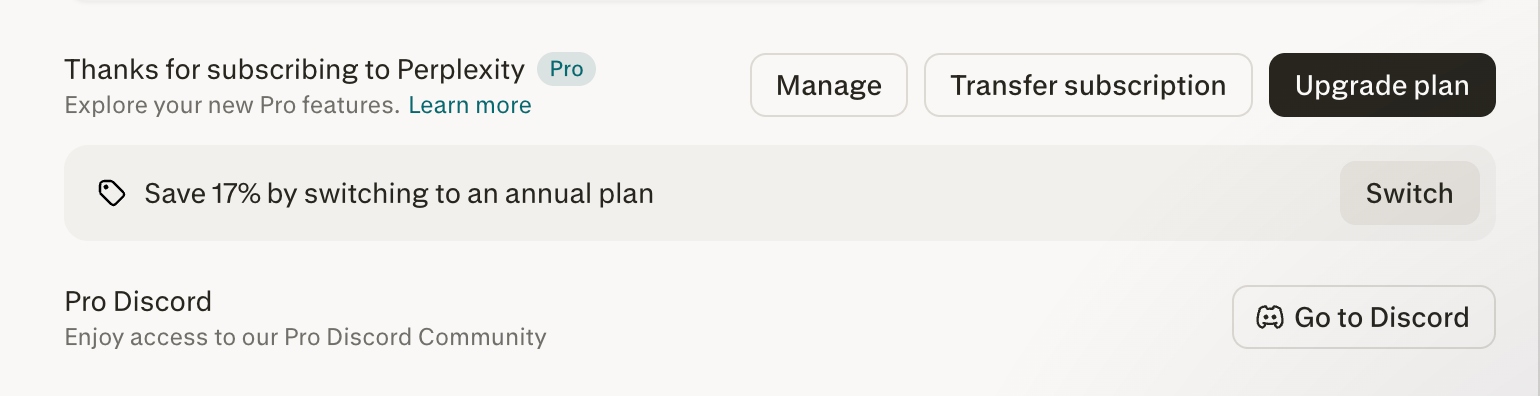
Follow the on-screen prompts to enter the new email address and confirm the transfer.
Once completed, your subscription will be associated with the new email address, and it will no longer appear on the original account.